
The Expr3ss! connector allows you to successfully export applicants from Expr3ss! directly into Employment Hero to begin onboarding. There is no cost for this connector, so you can start using it today.
This guide explains how to connect your Expr3ss! service with Employment Hero.
Before you begin:
You must have Employment Hero Platinum subscription or higher to use the connection.
You will need assistance from the Expr3ss! Customer Success team during setup.
Step 1: Request the integration
Contact the Expr3ss! Customer Success team and request that the Employment Hero connection to be enabled for your service.
The Expr3ss! team will:
Enable the connection for your account.
Provide you with a Redirect URI required to configure the connection.
You will need this link later when setting up the application in Employment Hero.
Step 2: Open the Employment Hero Developer Portal
Log in to Employment Hero as an Administrator.
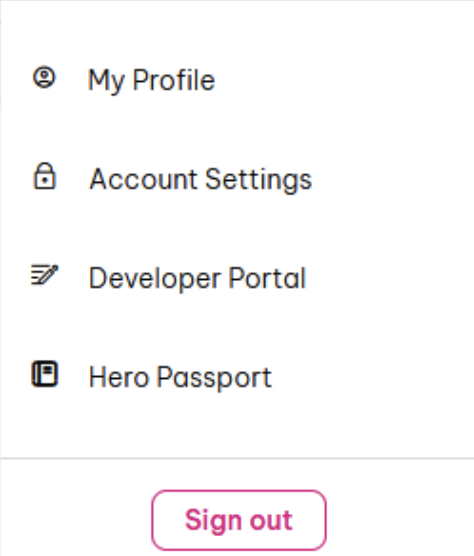
Click your profile name in the top-right corner.
Select Developer Portal from the menu.
Step 3: Create a new application
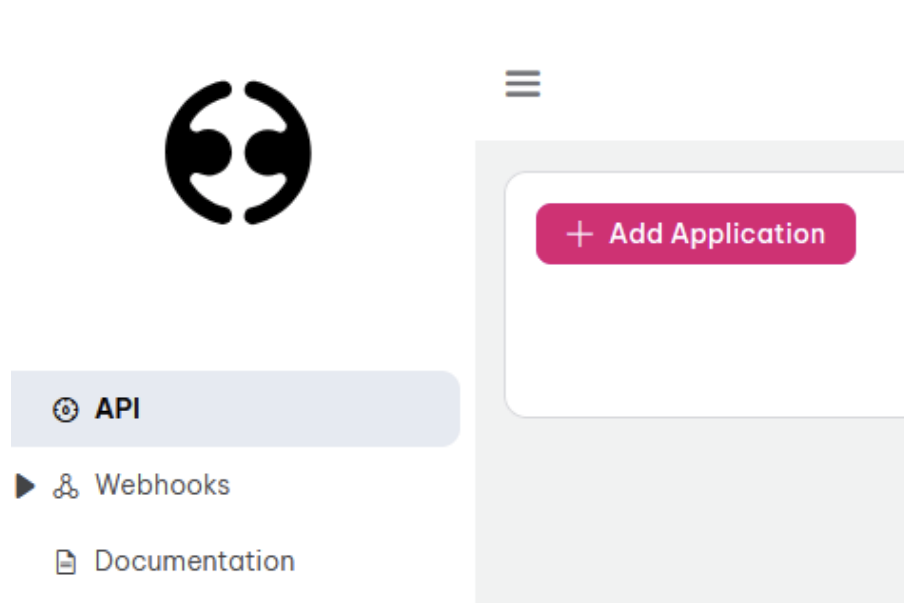
In the API section of the Developer Portal, click Add Application.
You will now see the Add New Application form.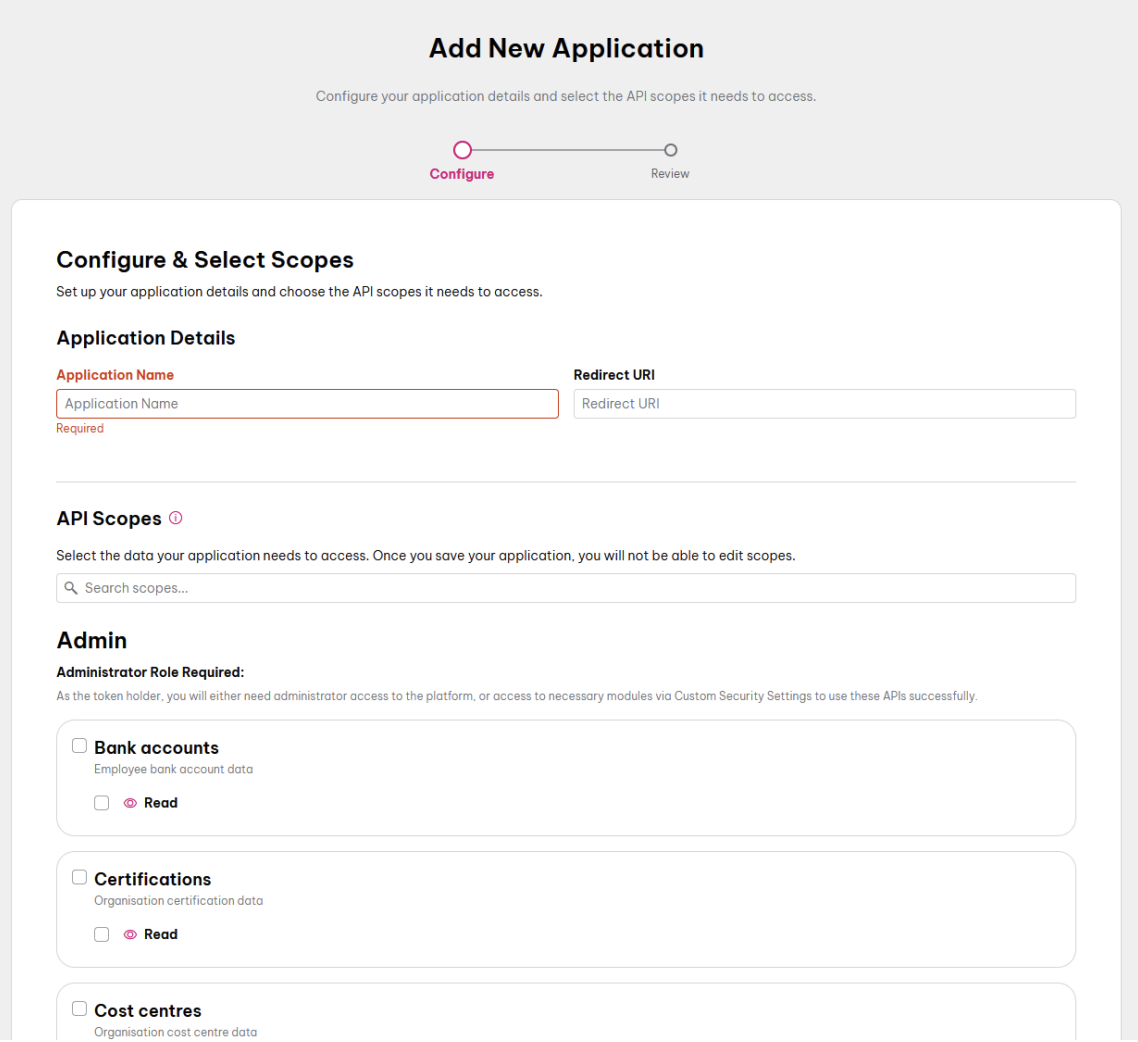
Step 4: Configure the application
Enter the following details:
Application Name
Expr3ss!
Redirect URI
Paste the Redirect URI provided by Expr3ss!.
Select API scopes
Enable the following scopes: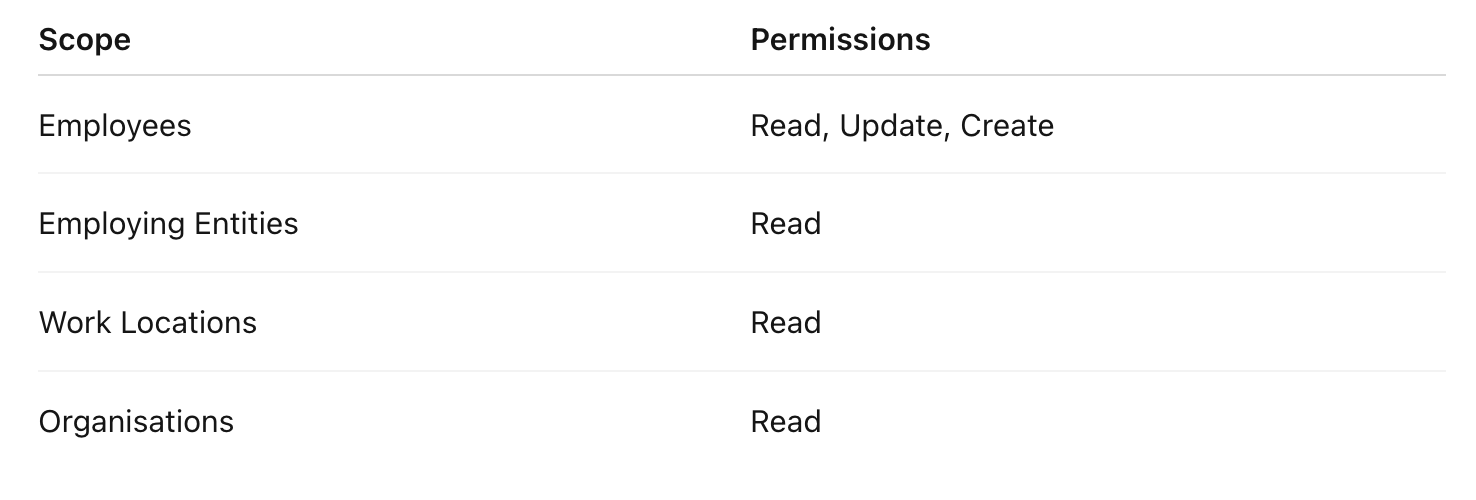
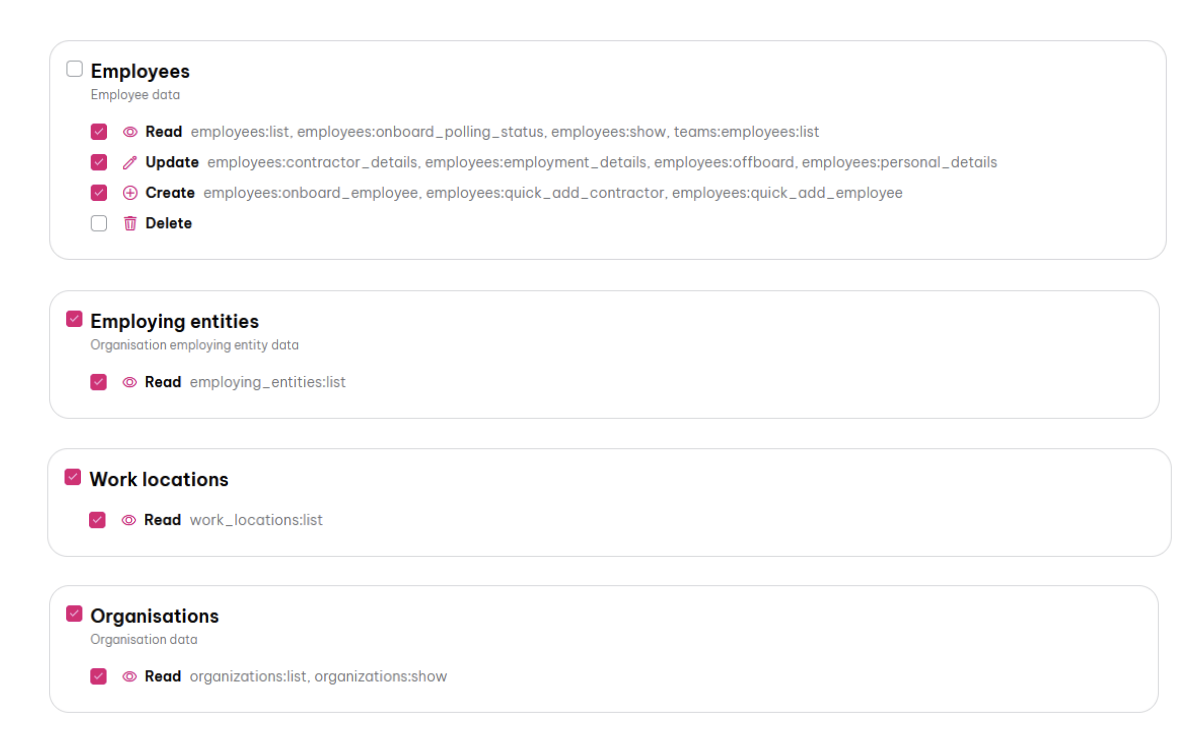
Warning: Once the application is created, API scopes cannot be edited. If the incorrect scopes are selected, the application must be recreated.
At the bottom of the page you should see 15 scopes selected.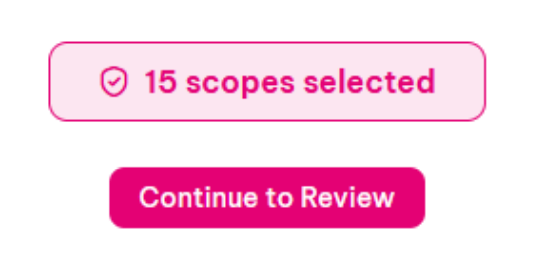
Click Continue to Review.
Step 5: Confirm selected scopes
Verify the following scopes are included:
employees:list
employees:onboard_polling_status
employees:show
teams:employees:list
employees:contractor_details
employees:employment_details
employees:offboard
employees:personal_details
employees:onboard_employee
employees:quick_add_contractor
employees:quick_add_employee
employing_entities:list
work_locations:list
organizations:list
organizations:show
Then click Create Application.
Important: The connection will not function correctly unless all scopes above are selected.
Step 6: Send API credentials to Expr3ss!
Once the application is created you will see your API credentials.
Copy the following values:
Client ID
Client Secret
Securely send these details to the Expr3ss! team so they can complete the integration setup.
We recommend emailing a password protected file containing the Client ID and Client Secret, then texting the file's password to your Expr3ss! Account Consultant.
Step 7: Authorise the connection
Once Expr3ss! confirms the configuration is complete:
Paste your Redirect URI into your browser.
You will be redirected to Employment Hero.
Authorise the connection.
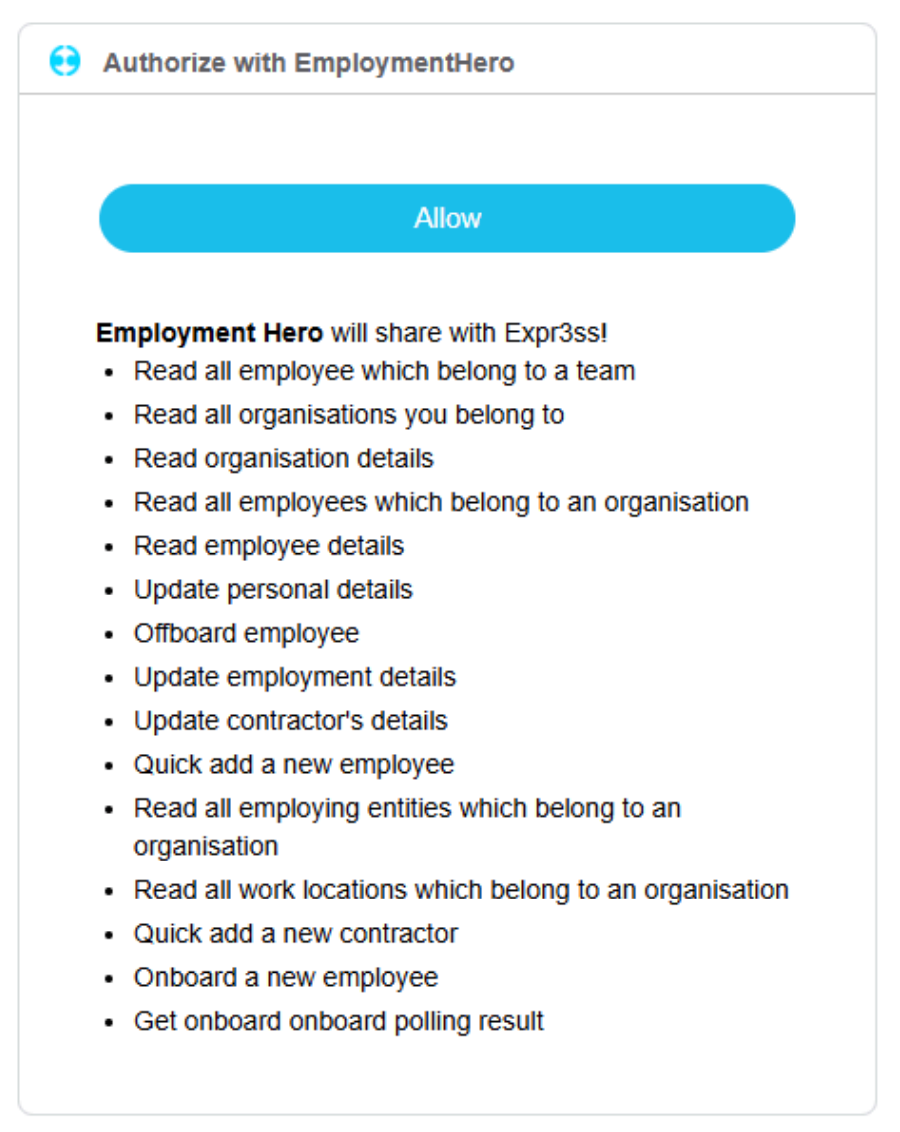
Click Allow.
You should then see a success message confirming the API access has been authorised.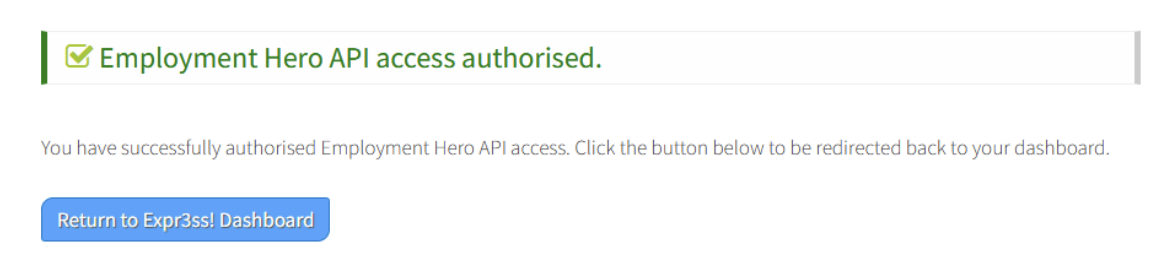
Step 8: Export applicants to Employment Hero
Once the connection is authorised, you can begin:
Exporting successful applicants from Expr3ss! into Employment Hero.
✅ The connection is now ready to use.
NOTES:

Part of the connection setup must be completed by the Expr3ss! Customer Success team, as they will provide configuration details required in later steps.

Important

Keep the Redirect URI provided by Expr3ss!. You will need it when creating your API application in Employment Hero.

Warnings

Once the application is created, API scopes cannot be edited. If the incorrect scopes are selected, the application must be recreated.

Treat your Client Secret as sensitive information. Only share it with the Expr3ss! team responsible for configuring the integration.


Common Set up Mistakes

The following issues are the most common reasons the Employment Hero integration may fail during setup.

Incorrect Redirect URI

The Redirect URI must match exactly the one provided by Expr3ss!.  Even small differences such as missing characters, spaces, or additional text will prevent the authorisation process from working.

Missing API scopes

All required API scopes must be selected when creating the application in Employment Hero. If any scopes are missing, the integration may fail or certain actions (such as exporting applicants) may not work. (you should see 15 scopes selected before continuing to review the application.

Client ID or Client Secret entered incorrectly

If the Client ID or Client Secret is copied incorrectly or partially, Expr3ss! will not be able to authenticate with Employment Hero.

Authorisation step not completed

The integration is not active until you complete the final authorisation step and click Allow when prompted by Employment Hero.

Application created by a non-administrator user

Only administrator users can successfully create and authorise the application in Employment Hero.

If the integration still does not work after completing these steps, please contact the Expr3ss! Customer Success team and include your Client ID and the name of your Employment Hero organisation so we can assist you more quickly.

TIPS:
Only administrator users can access the Developer Portal and create API applications within Employment Hero.
If your organisation uses Single Sign-On (SSO), you may be asked to complete the authentication process before authorising the integration.
Exporting applicants transfers their details into Employment Hero so they can be onboarded and managed within your HR workflows.
You can choose the Export Method you would like to use. Let the Expr3ss! Customer Success team know your preference during set up. It is possible to enable both or choose one default option only.
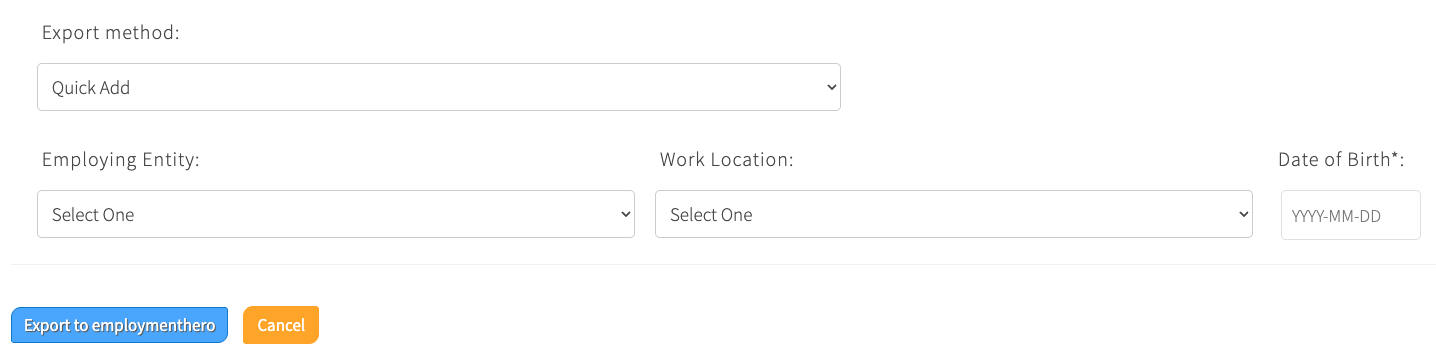
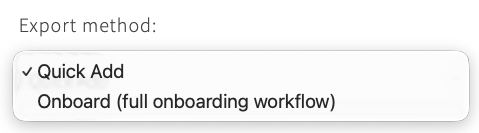 Quick Add will export the applicant contact details to quickly create a basic employee profile in Employment Hero.
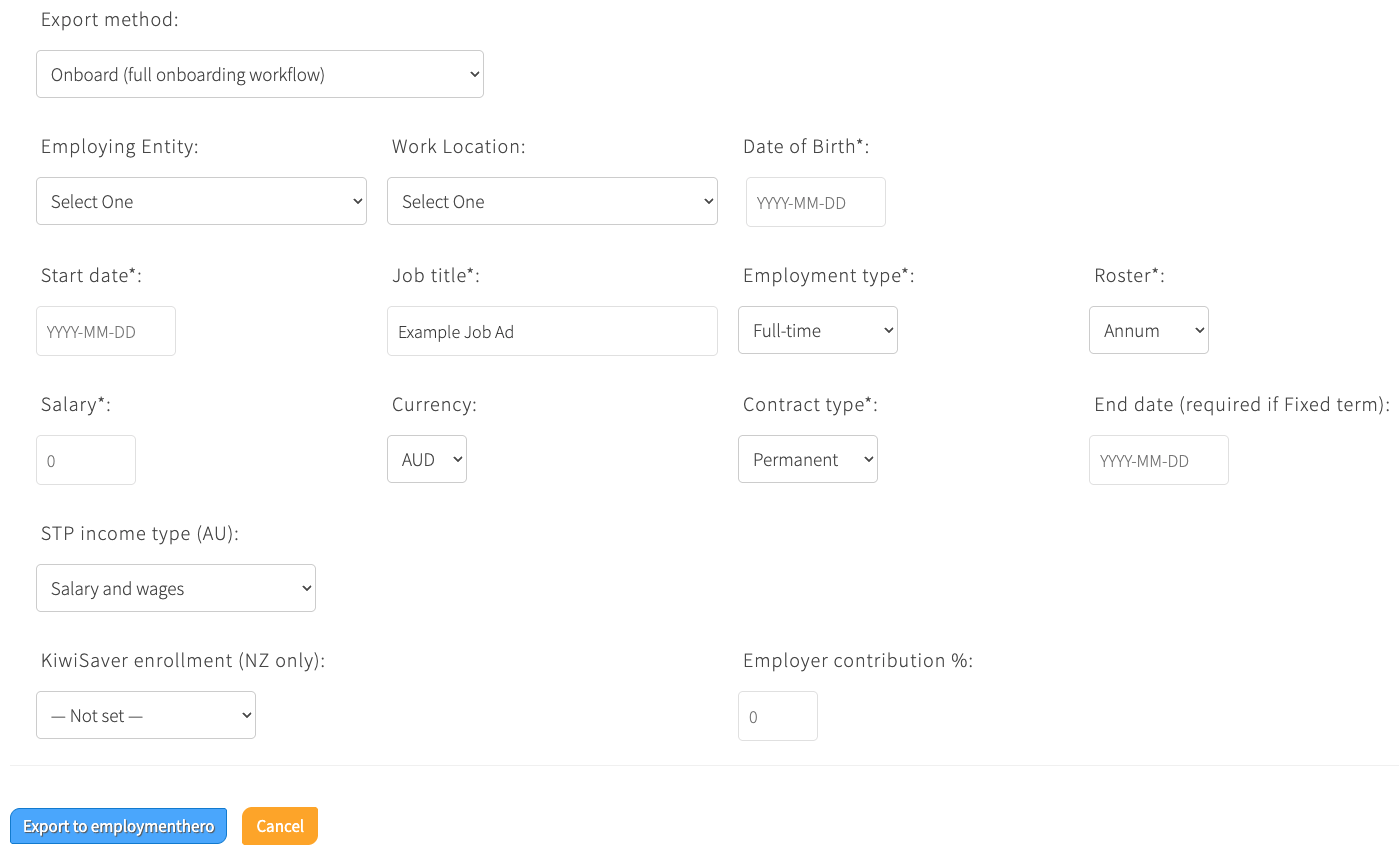
 Onboard will export the applicant contact details along with their payroll information for onboarding (you will be required to enter this information at the point of exporting).
We are always looking to make these articles better. Can you help us?
We're all about CANI here (Constant and Never-Ending Improvement). We'll plant a tree for every new suggestion! Why not re-write it? Or contribute on another topic we have not yet covered? When we publish it, we'll plant 33 trees in your name and attribute the article to you if you wish. Click here to help us improve.