
The Expr3ss! connector allows you to successfully export applicants from Expr3ss! directly into Employment Hero to begin onboarding. There is no cost for this connector, so you can start using it today.
If you have an Employment Hero account that you would like to connect to your Expr3ss! service, or if you would simply like to discuss how this connection works, contact the Expr3ss! Customer Success Team or Live Chat team.


Note: Users with 0, 2 or 4 access level will not have full edit access to export applicants to Employment Hero. Users with 1, 3 or 5 access may not have access to export applicants to Employment Hero. To unlock the full functionality, speak to a System Supervisor about giving you a higher level of access.
To export your applicants to Employment Hero from the View Applicants, View Shortlist or Talent Pool Search pages
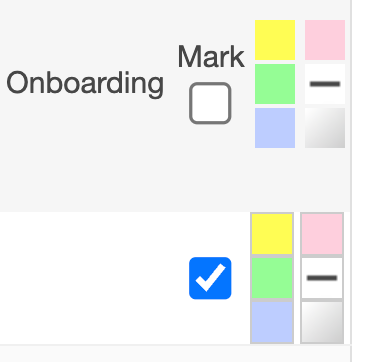
- Click one or more applicants in the Mark column in the Applicant Table you wish to export to Employment Hero
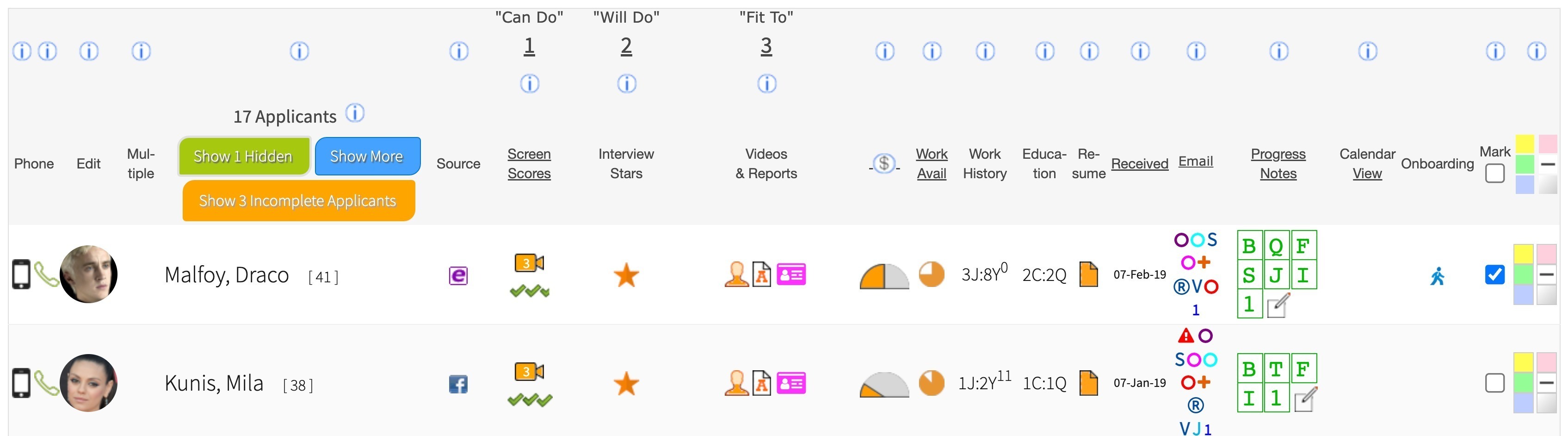
- Click Select an Action on Marked Applicants

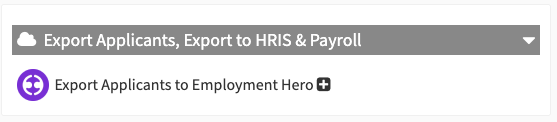
- Select Export Applicants to Employment Hero Actions panel options

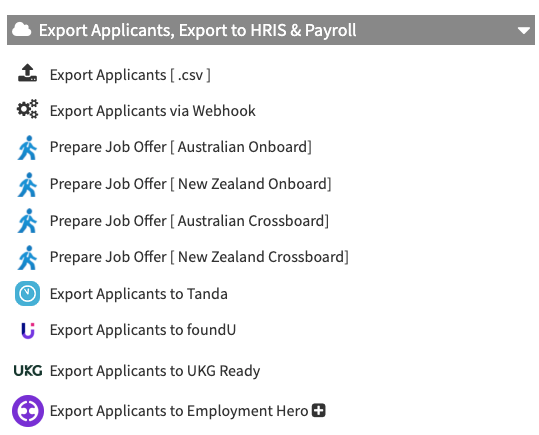
or type Employment Hero into the search bar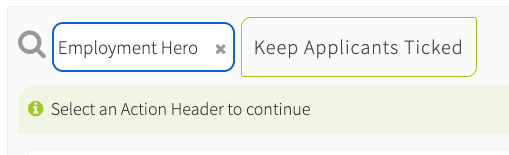
- Fields automatically exported by default will display Field buttons highlighted in green.
Important: the export fields will only export data if it exists for the applicant.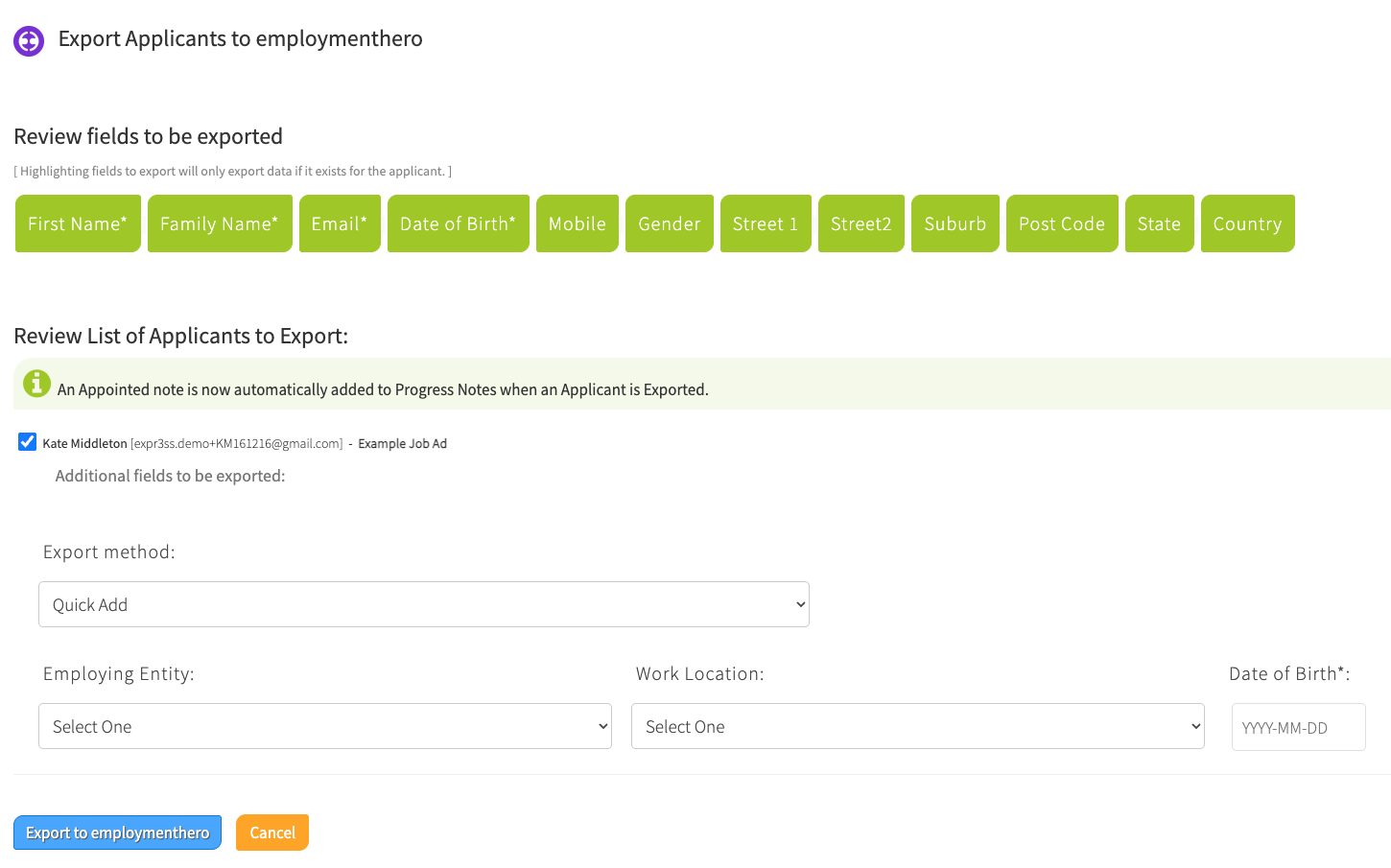
- Select the desired Export Method

Quick Add will export the applicant contact details to quickly create a basic employee profile in Employment Hero.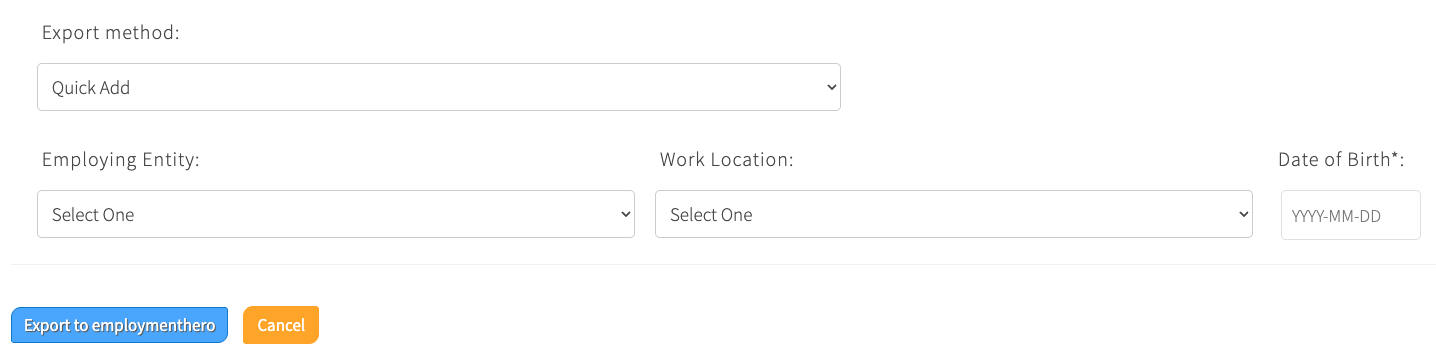
Onboard will export the applicant contact details along with their payroll information for onboarding (you will be required to enter this information at the point of exporting).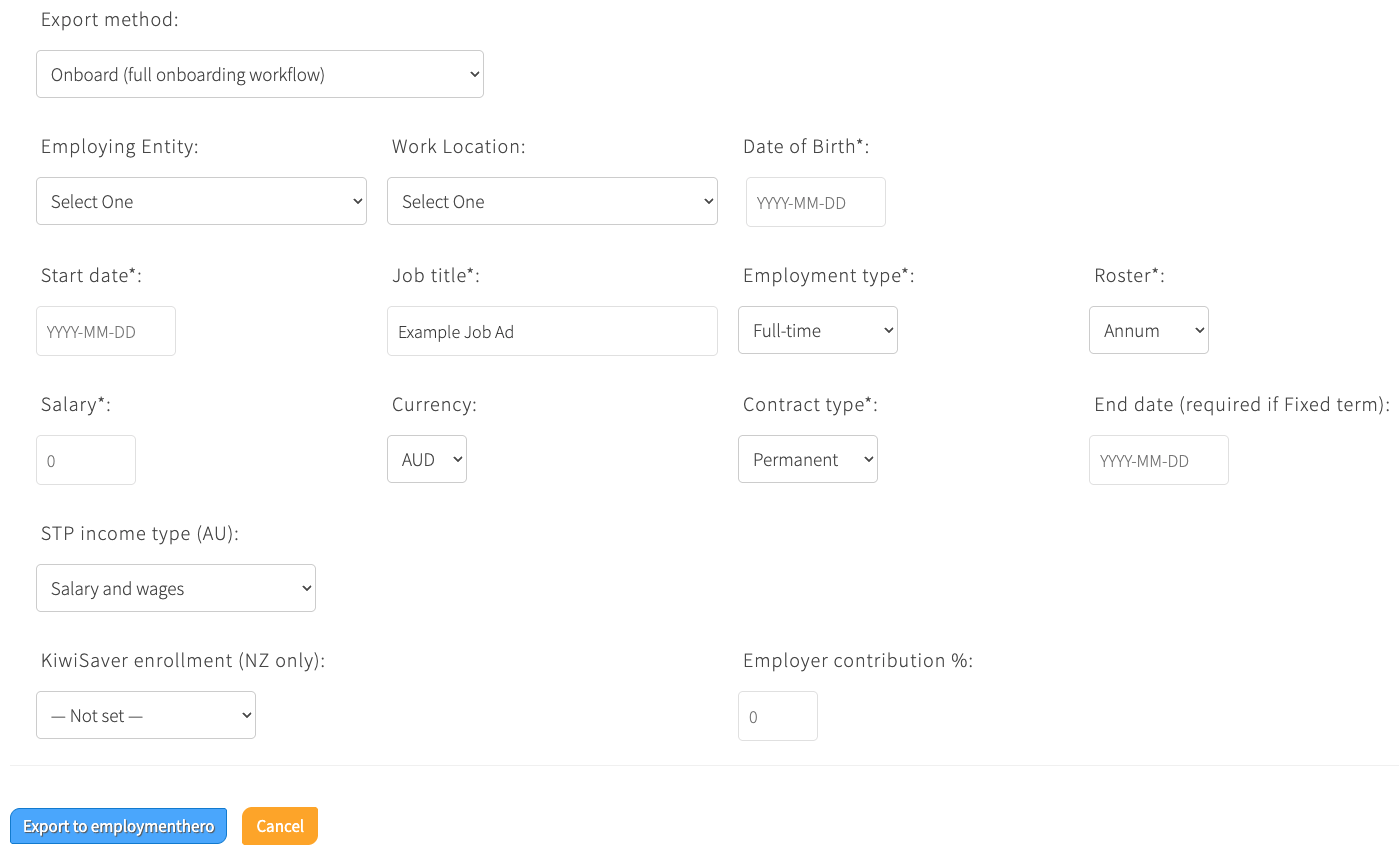
Note: Date of birth is an Employment Hero defined required field. If you do not have Date of birth information for the applicant, please enter a dummy date; otherwise, you will not be able to complete the export. - For Additional Fields to be exported, use the drop down menu which appears for each category

NOTE: The dropdown menu options are pulled through from the information set up in your Employment Hero account - Click Export to Employment Hero

- A success message will be displayed to confirm that the applicant(s) have been exported to Employment Hero
- Click Close to return to your Applicants Table on the View Applicants, View Shortlist or Talent Pool Search page

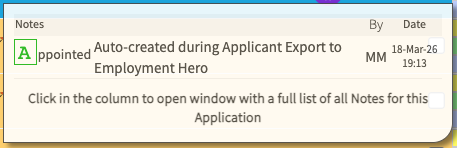
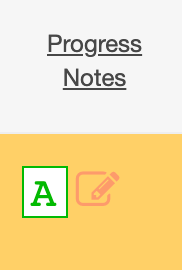
An Appointed Note will be automatically added to the applicant record to indicate that they have been moved to the Job Offer stage to help with your Hire analytics and reporting. Progress Note information is fully searchable in your Talent Pool
The applicant record(s) will be relocated to the top of the page and highlighted in gold.
You will also see an Employment Hero icon under the Onboarding column.
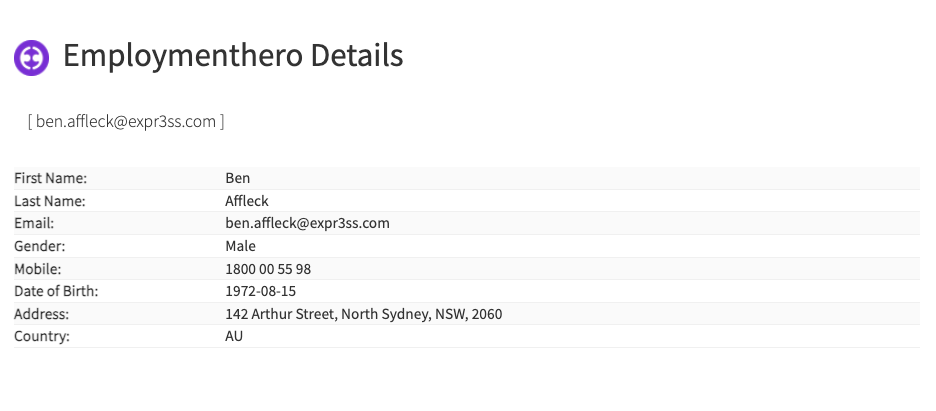
Click to see more details on the exported applicant.
NOTES:

Be sure to get in touch with your Account Manager or the Expr3ss! Customer Service Team or Live Chat team should you have any customisation requirements regarding the selectable Fields options displayed on the Export to Employment Hero page.

TIPS: All applicant Employment Hero exports can be managed and viewed by heading to the Connectors tab in the navigation menu and selecting Manage Employment Hero Offers.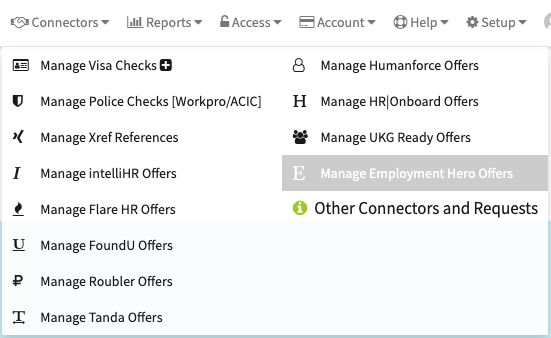
The Mange Employment Hero Offers page will display your exported to Employment Hero applicants.
Use the Search Bar to easily locate applicants from the list.
Click the document icon to review the detail on the information exported.


We are always looking to make these articles better. Can you help us?
We're all about CANI here (Constant and Never-Ending Improvement). We'll plant a tree for every new suggestion! Why not re-write it? Or contribute on another topic we have not yet covered? When we publish it, we'll plant 33 trees in your name and attribute the article to you if you wish. Click here to help us improve.